
Zoiper Softphone Setup with Voyced
Set up Zoiper on Windows, macOS, Linux, Android or iOS using your Voyced telephone number.
Zoiper is a SIP softphone. It lets you make and receive calls through your Voyced account using a computer, smartphone or tablet.
This guide covers both the quick setup using Zoiper's provider list and the full manual setup.
1. What you need
Before starting, make sure you have:
-
Zoiper installed on your device.
-
A working internet connection.
-
Your Voyced telephone number/account (DID).
-
The Service Password belonging to this number.
Download Zoiper from the official website:
Zoiper offers free and paid versions. The free desktop version supports one SIP account. Some advanced features require a paid licence.
Where to find your Voyced account details
-
Log in to your Voyced Hosted IPPBX.
-
Open Cloud PBX / IP Centrex > Phone Lines.
-
Select the telephone number you want to use.
-
Use the displayed DID as your SIP username.
-
Open My Profile > Settings to find the Service Password.
Use the Service Password for your telephone line, not your Voyced website login password.
2. Quick Install: Select Voyced as your provider
Zoiper includes a provider selection option in supported versions.
On Windows, macOS or Linux
-
Install and open Zoiper 5.
-
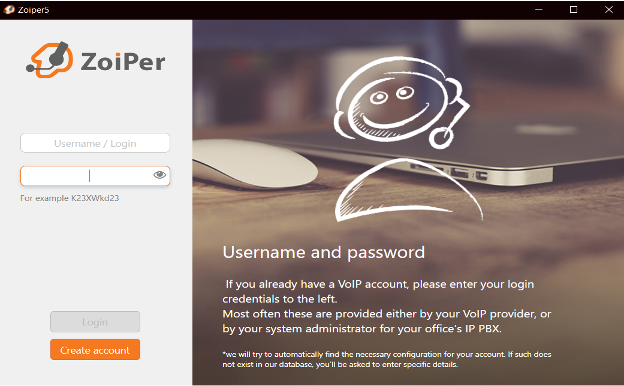
In the initial setup, choose Create Account.
-
Search the available VoIP providers for Voyced.
-
Select Voyced if available.
-
Enter your Voyced DID as the username.
-
Enter your Voyced Service Password.
-
Select Login or Continue.
-
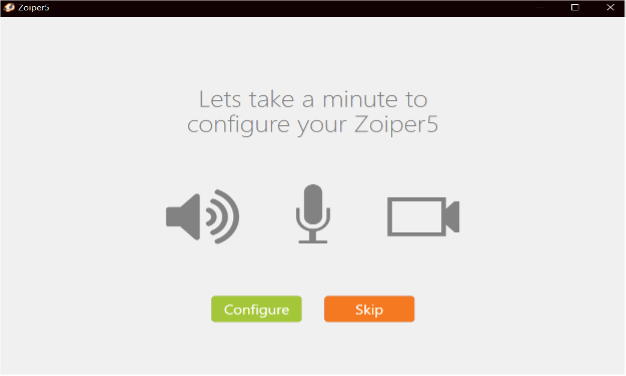
Complete the account setup and audio test.
If Zoiper asks for a SIP server, enter:
sip.voyced.eu
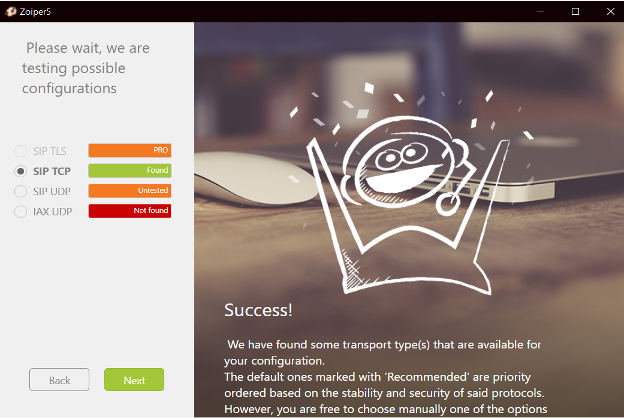
When asked to select a SIP transport, choose UDP.
On Android or iPhone
-
Install and open Zoiper.
-
Open Settings > Accounts.
-
Select Add Account (+).
-
Confirm you already have a VoIP account.
-
Choose Select a Provider or Providers List.
-
Search for Voyced and select the provider if listed.
-
Enter your Voyced DID and Service Password.
-
Save and complete the setup.
Menu names vary slightly between Android, iOS and Zoiper versions.
If Voyced does not appear in the provider list, use the full manual setup below.
Once the account shows Registered or a green status indicator, proceed to Section 4.
3. Full Manual Install
Use this method when Voyced is not listed, when you prefer to configure the account yourself or when the quick setup fails.
Step 1. Add your SIP account
On Windows, macOS or Linux:
-
Open Zoiper 5.
-
Enter your Voyced username and Service Password in the setup wizard.
-
Select Login or Next.
-
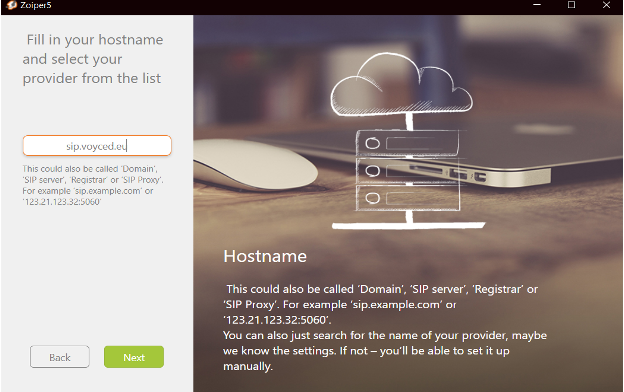
Enter the SIP server when requested.
For an additional account, open Settings > Accounts > Add Account. Multiple desktop accounts require Zoiper 5 Pro.
On Android:
-
Open Zoiper.
-
Go to Settings > Accounts > Add Account (+).
-
Confirm you already have an account.
-
Select Manual Configuration.
-
Choose SIP.
On iOS:
-
Open Zoiper.
-
Go to Settings > Accounts > Add Account.
-
Choose Manual Configuration.
-
Select SIP.
Step 2. Enter the Voyced account settings
| Setting | Value |
|---|---|
| Account name | Voyced |
| Account type | SIP |
| Username / User ID | Your Voyced DID |
| Password | Your Service Password |
| Domain / Host / Registrar | sip.voyced.eu |
| SIP port | 5060 |
| Transport | UDP |
| Display name | Your name or business name |
| Register account | Enabled |
| Outbound proxy | Leave empty |
| STUN | Disabled |
If Zoiper specifically requires an authentication username, use the same Voyced DID. Otherwise, leave this optional field unchanged.
Some versions automatically test several SIP transports. Select UDP when offered.
Do not select IAX or IAX2. Voyced uses SIP.
Step 3. Advanced SIP server options
Voyced offers DNS-based server selection for improved availability.
Where your Zoiper version supports these options:
| Option | Setting |
|---|---|
| Preferred server | sip.voyced.eu |
| Preferred DNS mode | NAPTR |
| Port with NAPTR | 0 |
| Alternative DNS mode | SRV |
| Port with SRV | 5060 |
| Traditional SIP | UDP, port 5060 |
| Secondary server | sipnl.voyced.eu |
| Secondary server port | 5060 |
If Zoiper does not offer NAPTR, SRV or a secondary server field, use the standard UDP setup with sip.voyced.eu on port 5060.
Step 4. Save and register
-
Save the account.
-
Allow Zoiper to complete registration.
-
Check the account status.
The status should show Registered, Online or a green indicator.
Your Voyced line is now connected.
4. Voicemail setup
Your Voyced voicemail access number is:
1233
To configure voicemail in Zoiper:
-
Open Settings > Accounts.
-
Select your Voyced SIP account.
-
Open Features, Advanced or the voicemail settings.
-
Find Check Voicemail or Voicemail Extension.
-
Enter
1233. -
Save your changes.
You should now be able to check voicemail using Zoiper's voicemail button.
You can also dial 1233 directly from your Voyced line.
If your version supports a Message Waiting Indicator (MWI), you may enable this feature. The voicemail notification depends on support from the connected service.
5. Caller ID settings
Caller ID is the telephone number shown to the person you call.
By default, Voyced displays the telephone number assigned to your SIP account.
Some Zoiper versions offer these fields under Settings > Accounts > Your SIP Account > Features:
-
Caller ID Name: Your name or business name.
-
Caller ID Number: Your authorised Voyced telephone number.
If these fields are unavailable, leave the default settings.
Changing the number inside Zoiper does not automatically change the Caller ID sent by Voyced.
Want to display a different number?
For example, you might want staff members calling from different lines to display your main business number.
Voyced supports authorised Caller ID changes upon request.
Open a Voyced sales support ticket titled:
"Outbound Caller ID adjustment"
Include the account number and the telephone number you wish to display.
If the number is outside your Voyced account, proof of ownership and additional approval may be required.
6. Audio and codec settings
Audio codecs determine how Zoiper sends and receives voice.
For most connections, use these codecs:
-
PCMU (G.711 u-law)
-
PCMA (G.711 a-law)
-
G.729, where available
Other codecs, including G.722 for HD audio, are supported in some configurations.
To adjust codecs:
-
Open Settings > Accounts.
-
Select your Voyced account.
-
Open Advanced > Audio Codecs, or the equivalent audio settings.
-
Enable your preferred codecs.
-
Save your settings.
If calls connect without audio or suffer quality problems, start by testing PCMU and PCMA.
For the initial setup, leave other audio options at their defaults.
7. Making international calls
Voyced uses one international dialling format across your devices.
Always dial:
00 + Country Code + Telephone Number
For example, to call Voyced in the United Kingdom:
00442035000202
Start with two zeros, followed by the country code and the full destination number.
If you have contacts saved with a leading plus sign (+), check Zoiper's dialling or number rewriting settings so the dialled number follows Voyced's 00 format.
You do not need a separate international dialling prefix for each country from which you use Zoiper.
8. Receiving calls on Android and iOS
Smartphones manage background applications to save battery power. This sometimes affects incoming VoIP calls.
For reliable incoming calls:
Android
-
Allow Zoiper to use mobile data and Wi-Fi.
-
Enable background data access.
-
Check the battery optimisation settings for Zoiper.
-
Allow the app to receive notifications.
-
If available in your version, check Zoiper's incoming-call push notification settings.
iPhone and iPad
-
Allow Zoiper to access mobile data.
-
Enable notifications for Zoiper.
-
Open Zoiper > Settings > Incoming Calls.
-
Check the push notification options available with your version or subscription.
Push notification functionality and availability vary by Zoiper version and licence.
For the first test, keep Zoiper open and confirm you receive calls before testing with the app in the background.
9. Testing your setup
Once Zoiper shows your Voyced account as registered, carry out these tests.
Outbound calls
-
Call another telephone number.
-
Check you hear the other person.
-
Confirm the other person hears you.
-
Check the Caller ID received by the other person.
Inbound calls
-
Call your Voyced number from another telephone.
-
Confirm Zoiper rings.
-
Answer and check audio in both directions.
Voicemail
Dial 1233 and confirm you reach your Voyced voicemail service.
International calls
Test an international number using the 00 prefix.
10. Troubleshooting
Zoiper does not register
Check your DID, Service Password and SIP server.
Confirm the server is sip.voyced.eu and the transport is UDP, port 5060.
Also check your internet connection.
Outbound calls fail
Make sure your account has sufficient call credit and the destination is permitted.
Check the number you dialled. International numbers must start with 00.
Incoming calls do not ring
Check the registration status.
On a smartphone, review background activity restrictions and push notifications.
If you have registered the same account on more than one device, test using a single device to rule out registration conflicts.
Calls connect but audio is missing
Check your microphone and speaker permissions.
Try another internet connection.
Review the selected codecs and start with PCMU and PCMA.
Telephone menus do not respond to key presses
Check your Zoiper DTMF settings. These control the tones sent when you press numbers during a call.
If a menu fails, ask Voyced Support to confirm the correct DTMF method for your connection.
Caller ID shows the wrong number
Check the telephone number assigned to your Voyced account.
If you need a different outbound Caller ID, request the change through Voyced.
11. Further help
For general SIP settings, see:
https://www.voyced.eu/clients/knowledgebase/4/Basic-setup-information.html
For Zoiper software and downloads, visit:
For assistance with your Voyced line, contact Voyced Support through your client area.
Once your account registers successfully and your inbound, outbound and voicemail tests pass, your Zoiper softphone is ready for everyday use.
Last updated: 27/10/2026
© Voyced
All information provided is copyrighted and purely informative in nature. It is maintained by Voyced with the greatest of care using reliable sources only.
Given the fast evolution of the telecom sector, Voyced does not offer any guarantee about the accuracy and completeness of the information offered.
We explicitly do not give anyone permission to use this information in any other way than to inform themselves about what (legal) requirements there may be and they need to comply with when registering Services and/or DIDs with Voyced.
